Klip quietly remembers your text, links, images, files and colors, and brings it all back with ⇧⌘V.
Free · Mac: version 1.62, macOS 27 or later, Apple silicon · iPhone & iPad: iOS 26 or later
On first launch, Klip asks for permission to paste for you. Here’s why.
See what Klip doesPress ⇧⌘V anywhere. Klip slides up from the bottom of the screen.
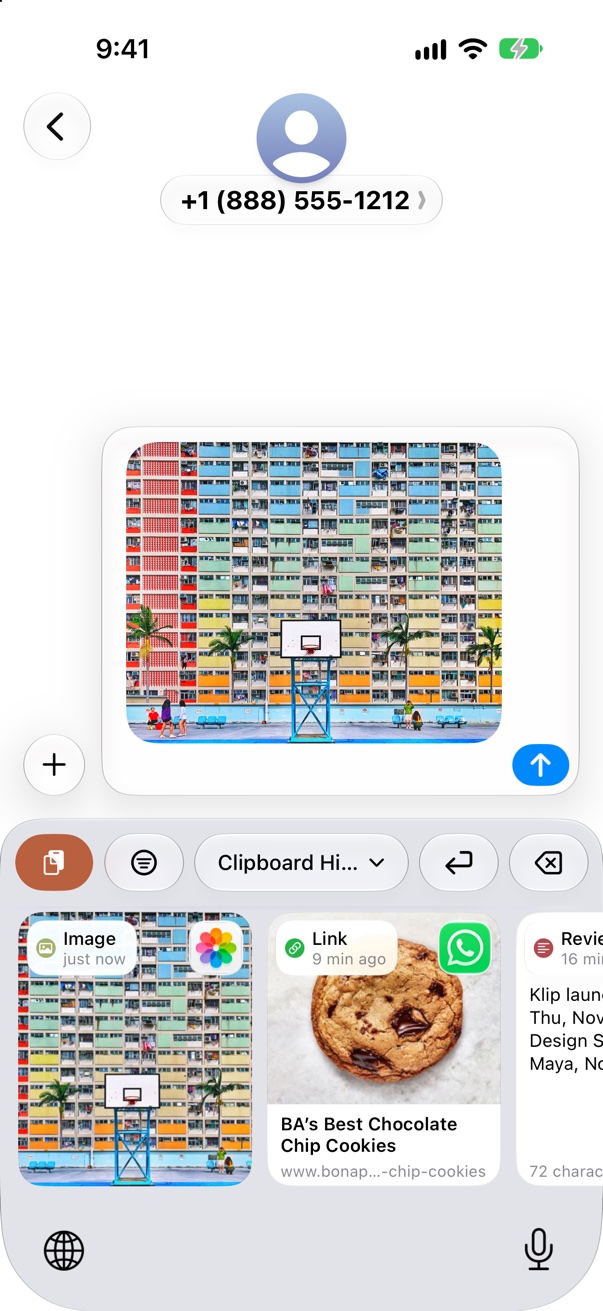
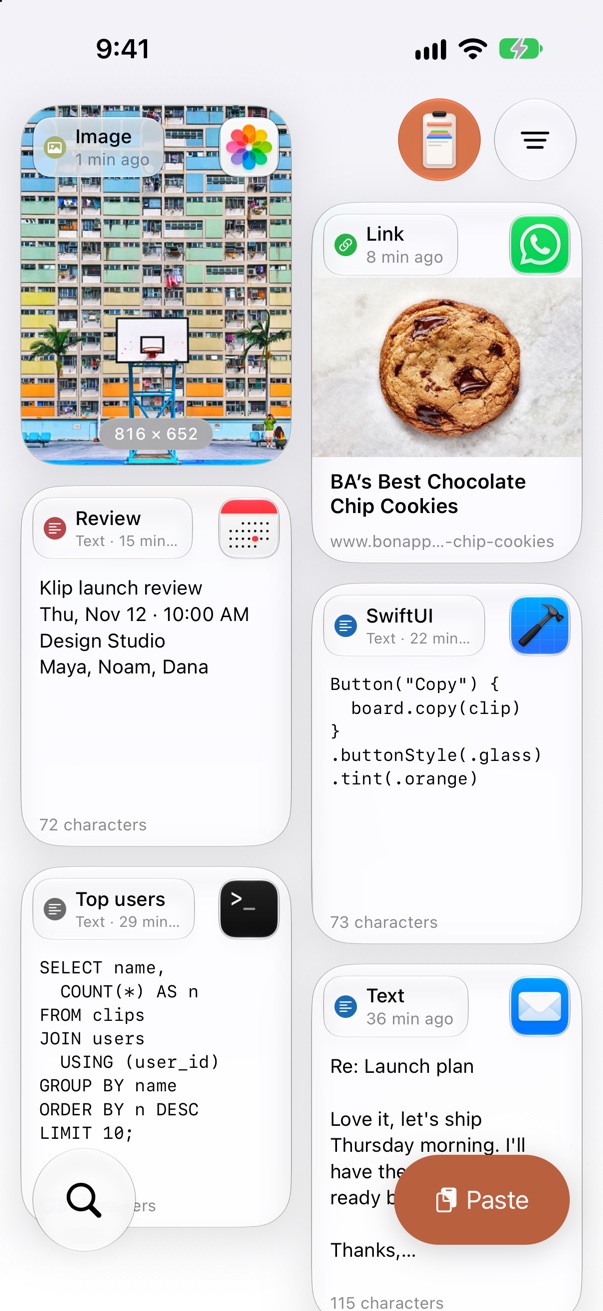
Copy as usual. Klip keeps a visual history of every clip and pastes it straight back into the app you're using.
Pick a clip and press Return. Klip pastes it right where your cursor is. Hold ⇧ to paste as plain text.
Text, rich text, links with page previews, images, files and hex colors, each shown the way it looks.
Pin the things you reuse, like signatures, addresses and code snippets, onto colored boards that never expire.
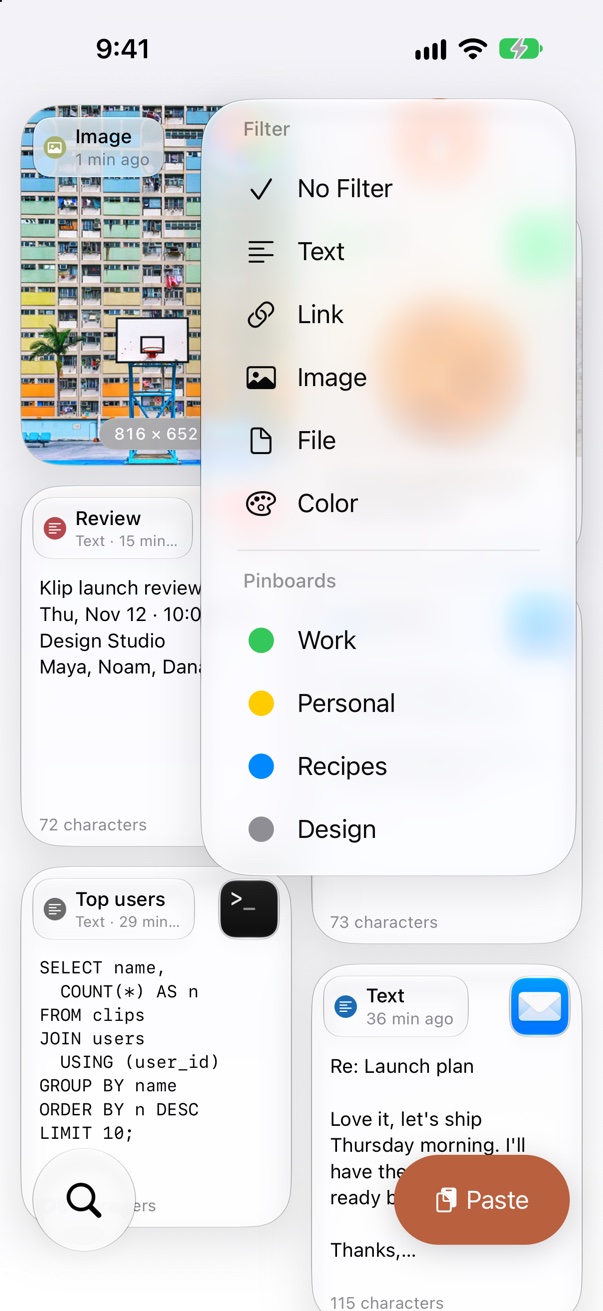
Just start typing. Narrow results by clip type or by the app you copied from.
Tag a clip with your own words, like “wifi” or “invoice”, and find it in a second by typing one. Keywords stay hidden from the card and sync with the clip.
Your history and pinboards follow you across your Macs through your private iCloud account.
⌘1–⌘9 pastes one of your latest clips without even looking.
Press Space for a big preview, or turn on press and hold in Settings: hold a card for a second to preview it, and let go to close. Edit text clips, rename them, or add keywords to find them later.
Coming from Paste? Bring your history and pinboards over in one click. Paste itself is never touched.
A bonus: a three-finger click on a Magic Mouse or trackpad becomes a middle click, so you can open links in new tabs or close tabs.
Turn it on in Settings, and every screenshot you take with ⇧⌘3, ⇧⌘4 or ⇧⌘5 goes straight to your clipboard and history, and is still saved as a file.
Resize the cards with a slider, pick Glass or Classic card designs, and give pinned clips their own emoji icon.
You copy passwords, keys and private messages every day. Klip is built so they stay yours. Read the privacy policy.
Copies from password managers, Apple’s Passwords app and browser password fillers are skipped automatically.
Turn it on and Klip ignores anything that looks like a secret key, such as GitHub, AWS, OpenAI or Stripe keys.
Turn it on and a deleted clip’s contents are wiped from storage, not just removed from the list.
Pick apps Klip should never record from. Keychain Access and Passwords are on the list from the start.
One switch keeps Klip’s panel and previews off screen shares and recordings, so only you see your clips.
There are no Klip servers. Your history lives on your Mac, iPhone and iPad, and no one else can see it.
Sync uses the private database in your own iCloud account. Even the developer of Klip can’t access it.
No sign-in, no ads, no analytics and no crash reporters. Your data is never sold or shared.
Choose how long history is kept, delete any clip, or clear the last 24 hours or everything in one go.
None of these is a big deal on its own. They just happen ten times a day, and Klip makes each one take a second.
You copied a link, then copied something else, and now you need the link again. Instead of going back to find it, it's right there in your history.
Copy five pieces from one document, then paste them one after another somewhere else. No jumping back and forth between windows for every item.
Terminal commands, a standard reply to an email, links you send every week. Pin them once and paste them in two keystrokes.
Universal Clipboard only carries the last thing you copied, and only for a short while. Copy three things on your iPhone and all three are waiting on your Mac.
The copy-to-clipboard screenshot shortcut keeps one image. Take another and the first is gone. With Klip, every new screenshot goes to your clipboard and stays in your history.
Passwords, card numbers and form filling belong in your password manager. Klip is for everything else you copy, and it skips copies from password managers.
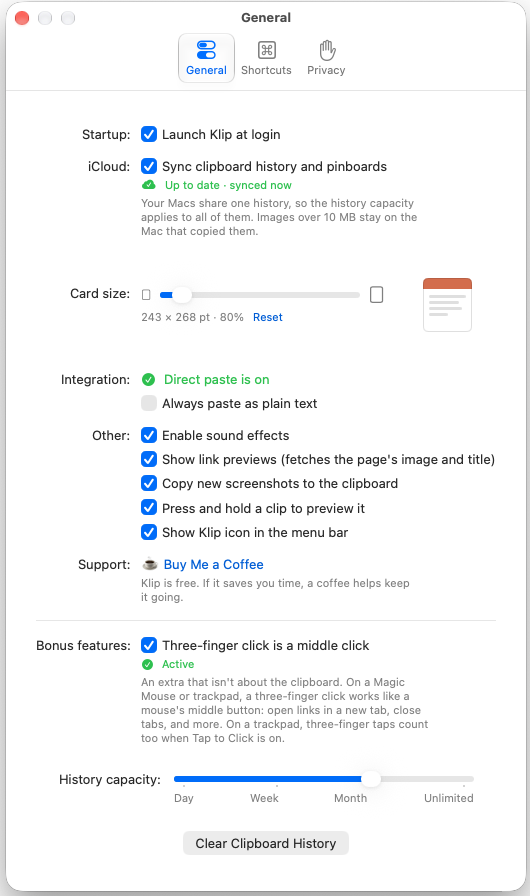
Pick your shortcut, choose how long Klip remembers, and turn on only the extras you want: link previews, sounds, screenshots straight to the clipboard, press and hold to preview.
Klip lives in the menu bar, with no Dock icon. Launch it again from Spotlight any time to open Settings.
Open Klip with ⇧⌘V, or any shortcut you like, and never reach for the mouse.
| ← → | Move between clips |
| ↩ | Paste the selected clip |
| ⇧ ↩ | Paste as plain text |
| Space | Preview, and edit text clips |
| ⌘R | Rename the selected clip |
| ⌘-click | Select several clips; ⌘A selects all |
| ⌘1 – ⌘9 | Quick-paste a clip (add ⇧ for plain text) |
| Type | Search; filter by type or app |
| ⌫ | Delete, or remove from a pinboard |
| ⇥ / ⇧⇥ | Next or previous pinboard |
| Esc | Clear the search, then close Klip |
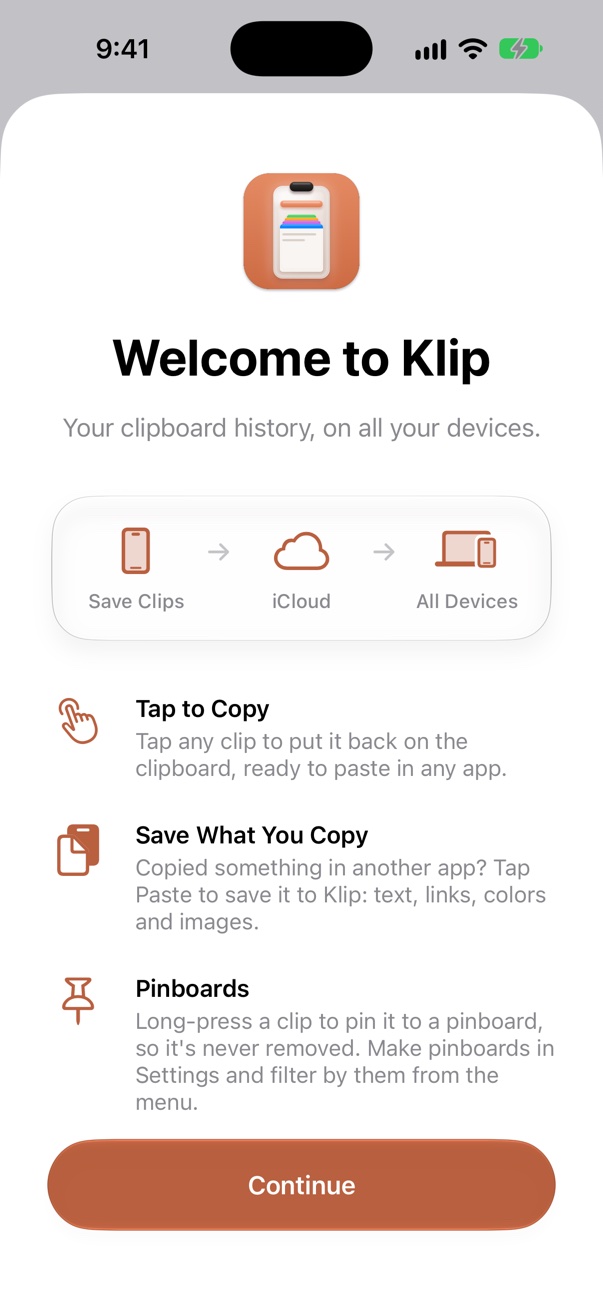
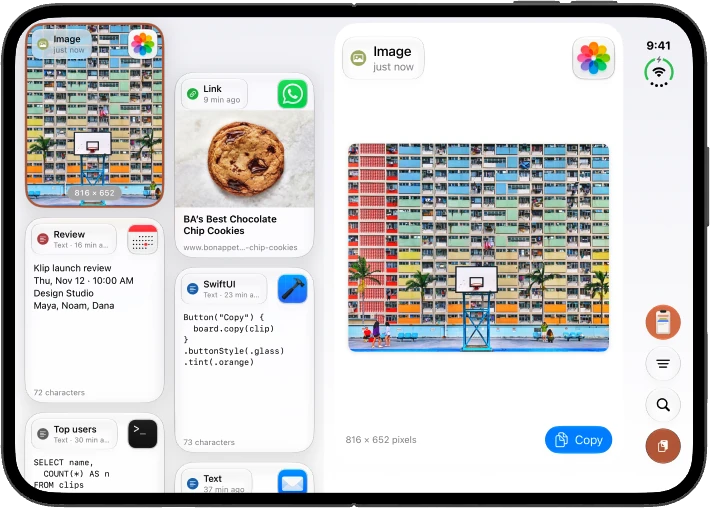
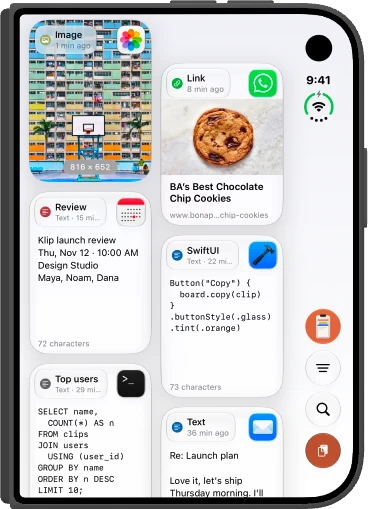
Your clipboard history, on all your devices. Clips and pinboards sync through your own iCloud account—the same history as Klip for Mac.


Klip keeps getting better. Here are the latest highlights for Mac.
Klip can skip API keys and tokens you copy, and securely erase the clips you delete. Turn them on in Settings → Privacy.
Klip 1.62
Clear just the last 24 hours of history, from Settings or the gear menu. Everything older stays put.
Klip 1.60
A new glass clipboard icon with a stack of cards, matching Klip for iPhone and iPad, and a smaller download.
Klip 1.58